

The content workflow I stopped doing by hand
How to develop the actual workflow that helps manage my content creation

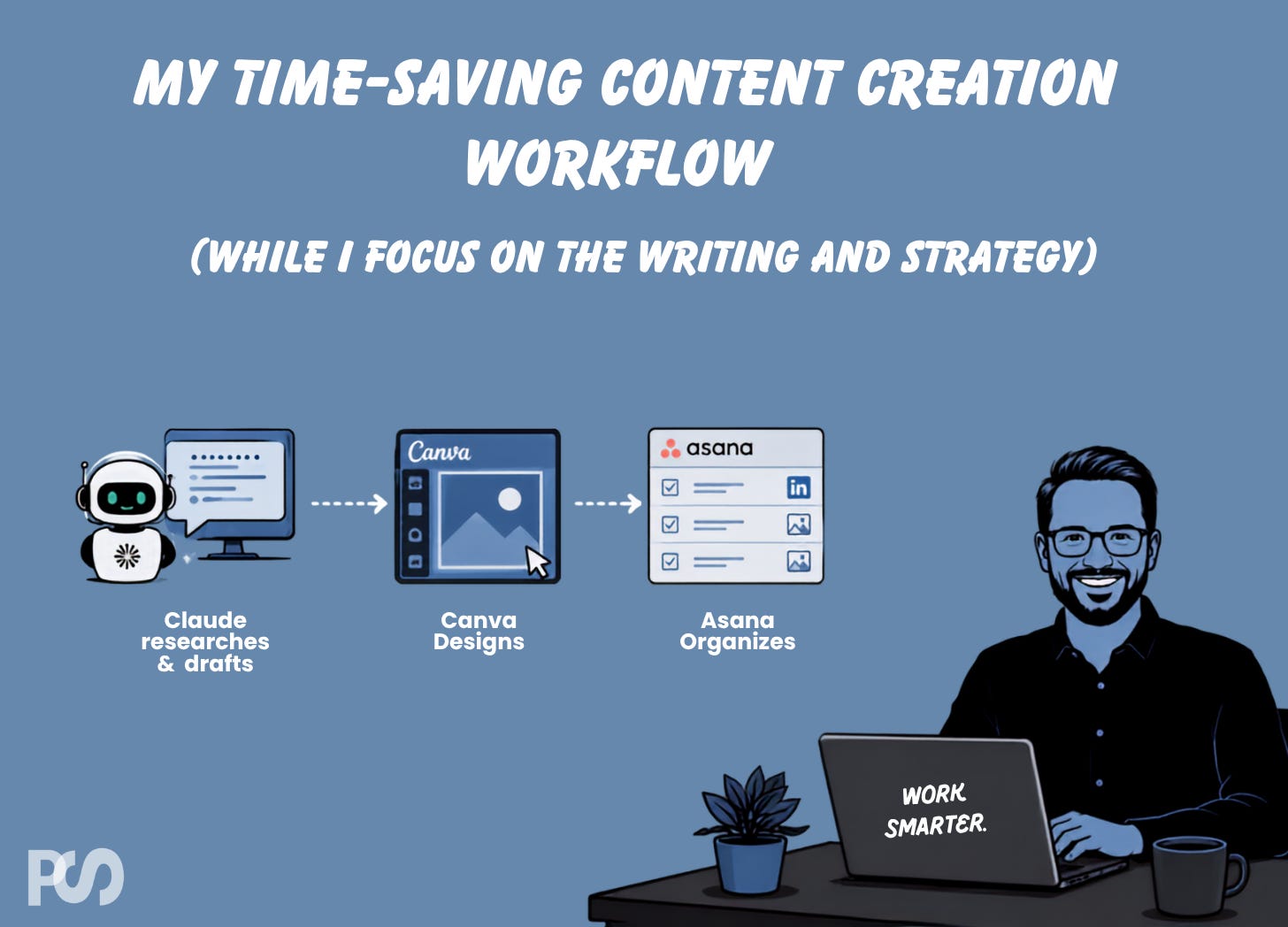
After many iterations, my Claude + Canva + Asana workflow now takes care of the manual work that I don’t have time for in my content creation work. It’s allowed me to focus more on the type of content, topics and engagement I want and not the manual steps to get there. Here’s how it works!
What I’m covering in this newsletter:
How I create design inspirations with Claude Design and connect to Canva
Setting up Canva to actually work with Claude (or ChatGPT)
Building an automation that pairs Claude, Canva, and Asana to get real work done.
Before I jump in, let’s set some context.
I’m not a graphic designer and I’ve always be in awe of what true graphic design talent in my marketing organizations over the years have produced.
I’m going to share an AI plus Canva workflow I’ve been working on, but in no way am I suggesting that AI and/or Canva replaces graphic design talent. No way.
But I’m a solopreneur. I also work with a lot of small marketing teams without dedicated graphic design talent, and Canva paired with AI workflows is a game-changer for quick graphics.
What I’m gonna share in this newsletter is a workflow I’ve been working on that helps me speed up and scale the content and graphic creation in my content processes.
Let’s dive in!
Glad you’re here and thank you for reading Approachable AI by Pat Schaber! In case you missed some recent articles, here’s a recap:


Let’s Start at the End
Before I dive into how to create this workflow, I want to show you the end result of how the workflow actually operates.
For this workflow, here are the tools I’m using:
Claude Cowork: the operator of the workflow
Asana: where I manage my content calendar
Canva: where my graphics are created from my Brand Templates
I also touch on Claude Design below which is a new part of my process.
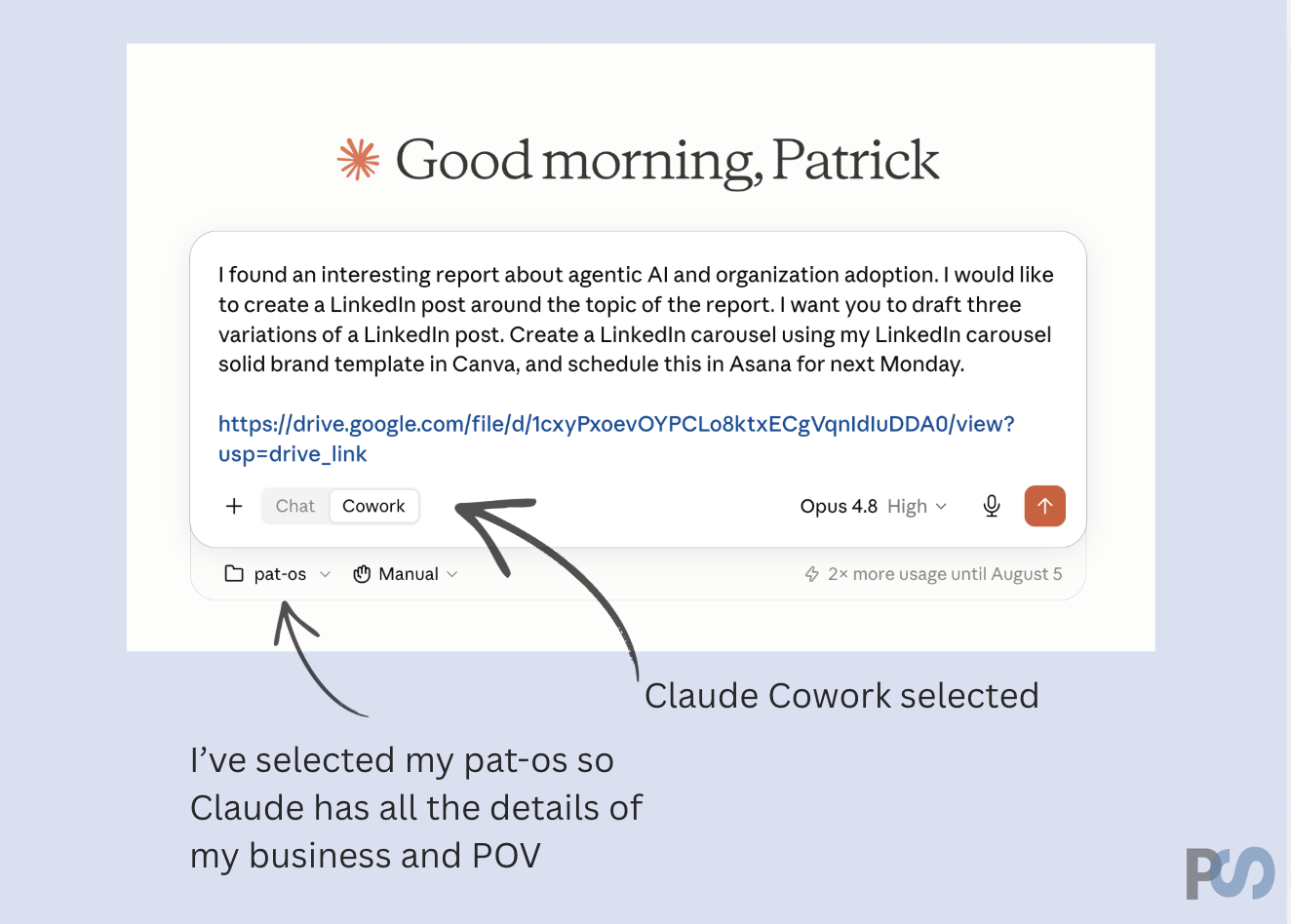
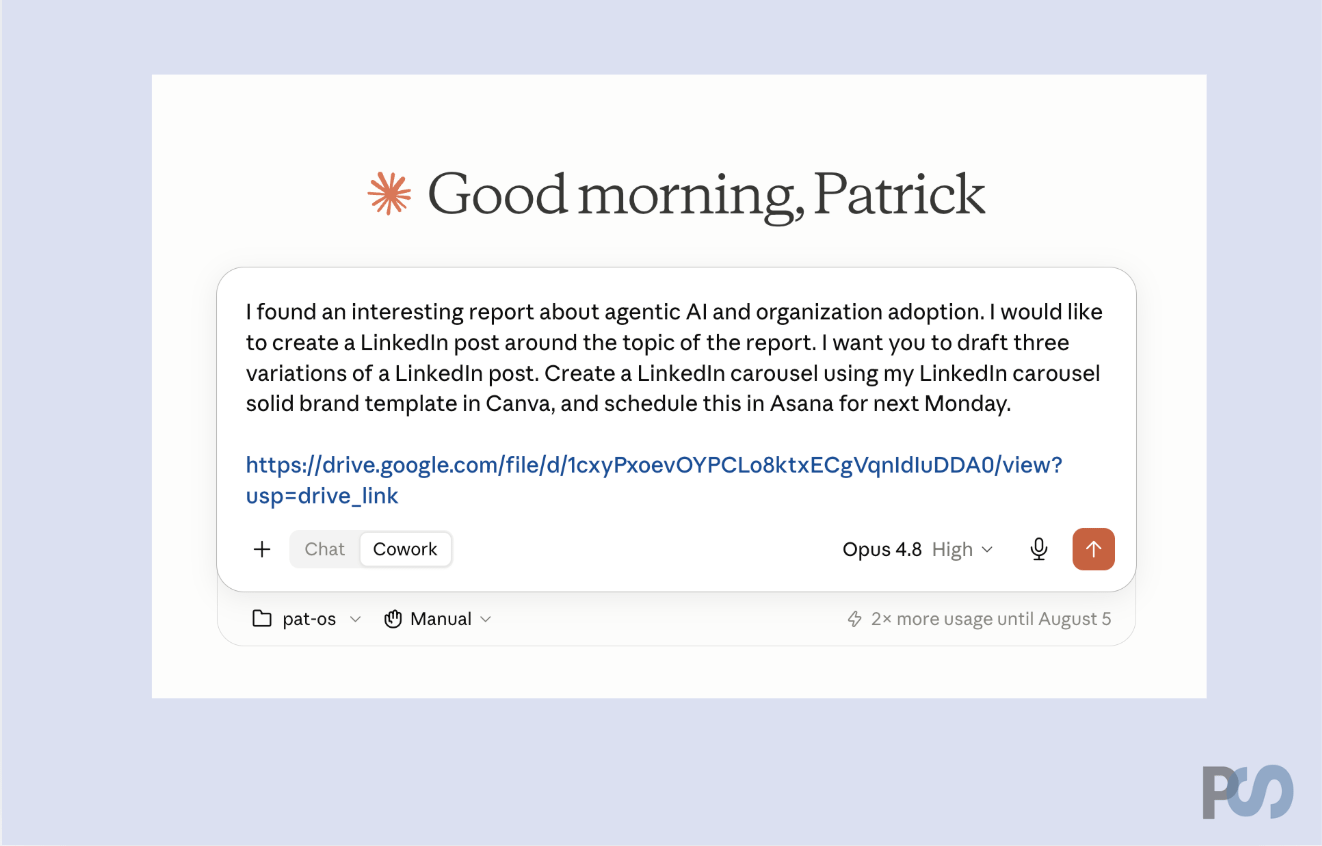
In the graphic below would be a typical chat that I put into Claude Cowork.
You can see I’ve selected my PatOS, which has all the information Claude Cowork needs to adapt my request to my business and point of view.
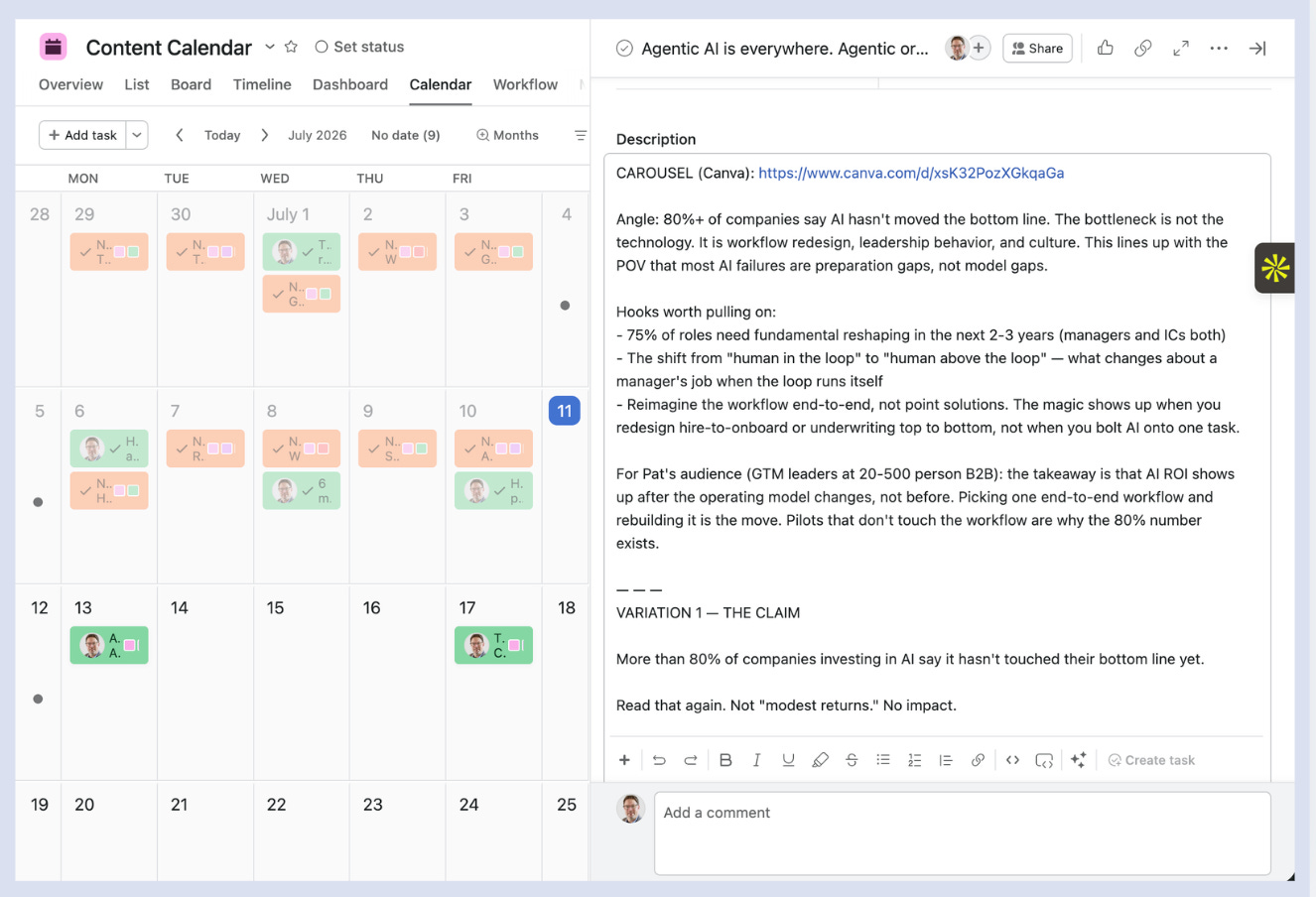
I then move on and work on other projects while Claude gets to work. A few minutes later, I’ll have this sitting in my Asana content calendar.
What I’ll have ready for me in Asana:
A link to the Canva design with my LinkedIn Post Carousel
Suggested hooks and angles based on my ICP and Point-of-View
3 variations of a LinkedIn post
I do all of my own writing for the most part, but I do lean heavily on the suggestions that Claude puts out there. It’s gotten to know my tone of voice and point of view so well that it does come pretty close to putting out something that I would post.
But I like the writing process, and I like to have things sound very much like me, so I end up considering all the suggestions and then writing my own post.
Now that you’ve seen the end result, let’s walk through how I built this.
Claude Design for Inspiration
As I mentioned above, I’m not a graphic designer, and I don’t want to put my energy towards that right now. We need to create some designs that we can load into Canva to use for our posts so I head to Claude Design.
I’ve never been that impressed with Canva’s AI tool, so I don’t even try that one anymore.
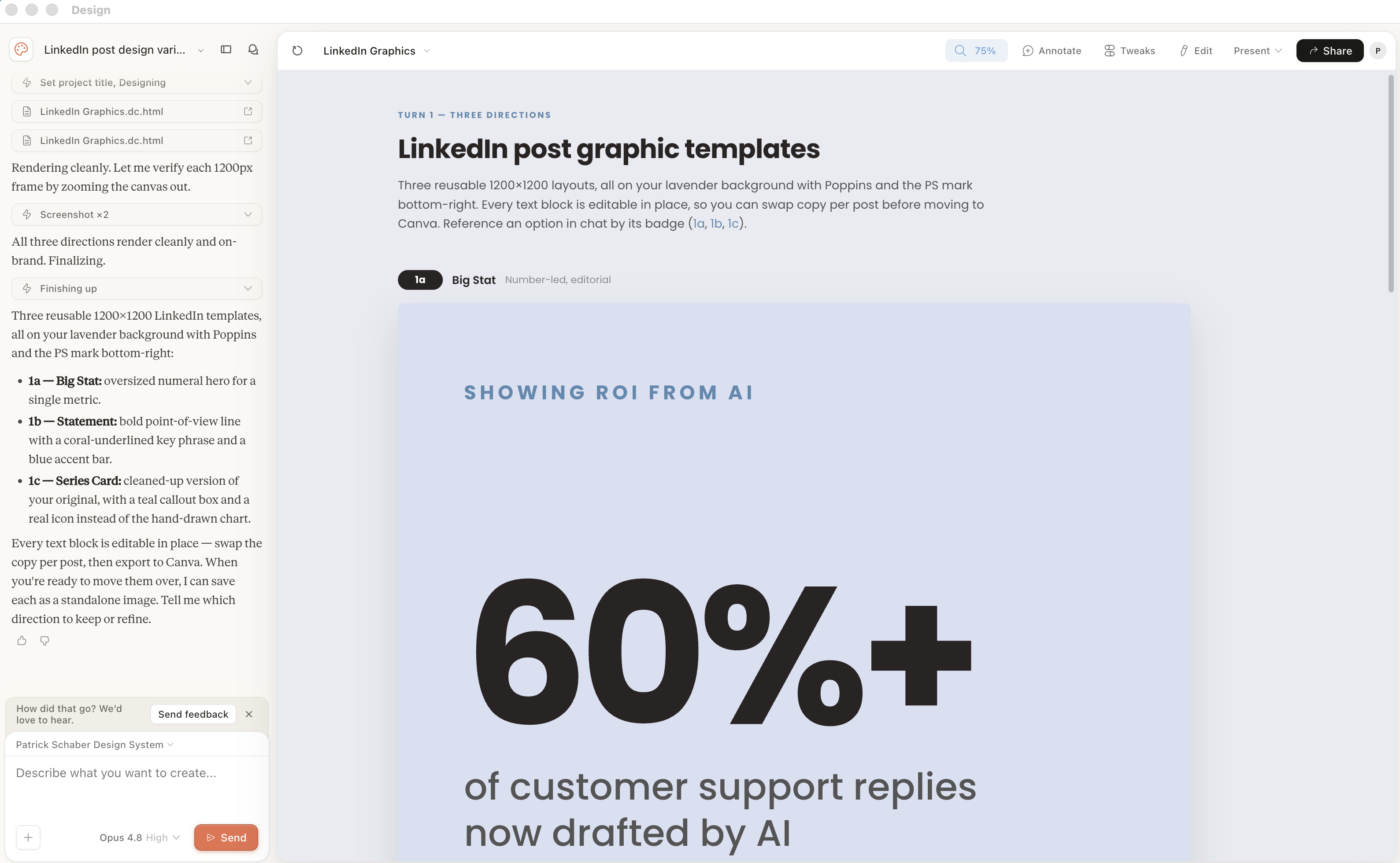
I give Claude Design an example of something I’ve used in the past, and I ask it to create some variations.
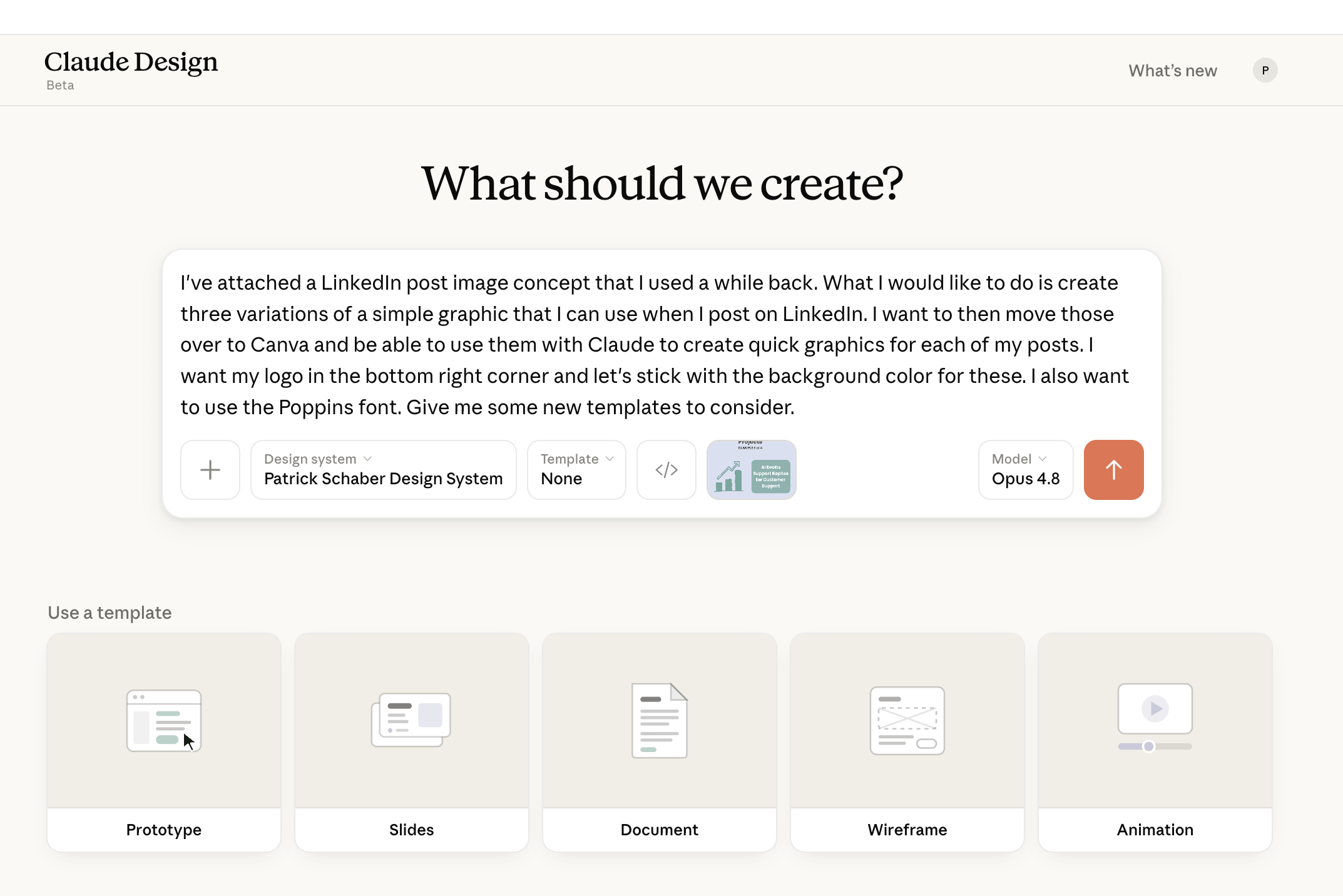
I have gone through the process of setting up a design system for my business in Claude design, so I don’t need to explain a lot about what everything should look like.
After some back and forth, I have a grouping of simple LinkedIn post designs.
Send Designs to Canva
I have my Canva account connected to Claude Design, so I can simply have Claude Design send these images to Canva.
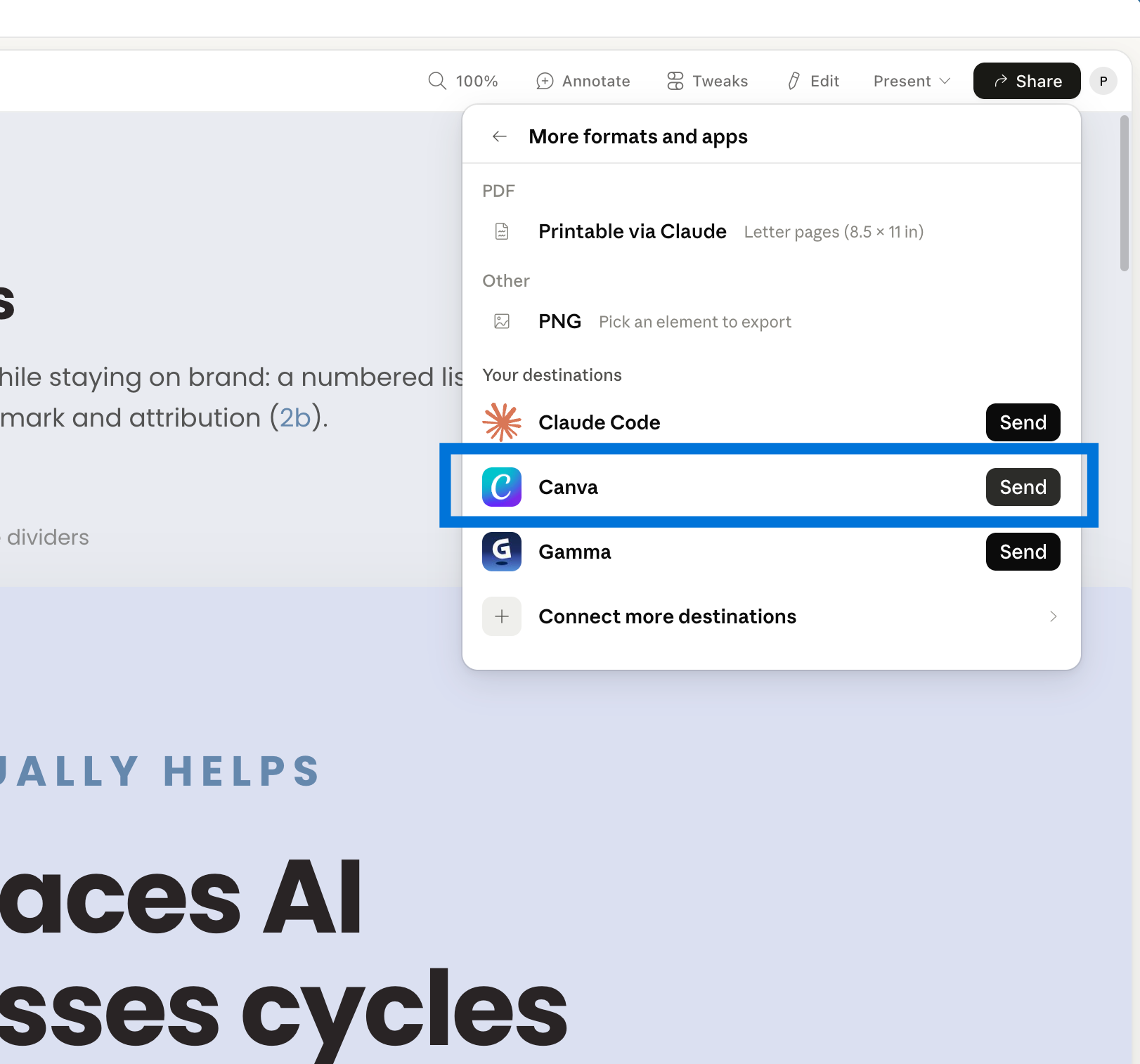
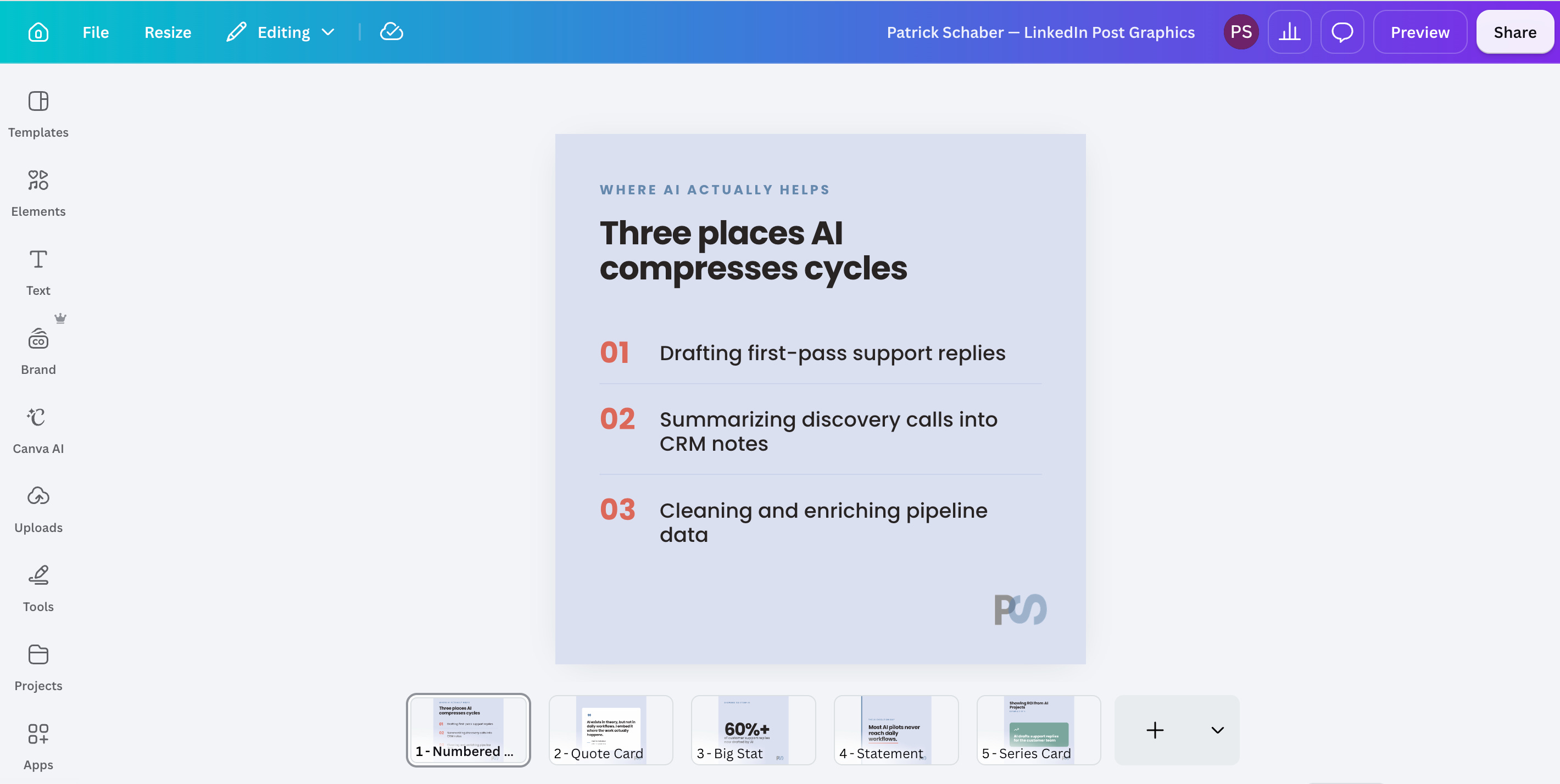
A few seconds later, those Claude Design images are now sitting in Canva.
Save Designs as Canva Brand Templates
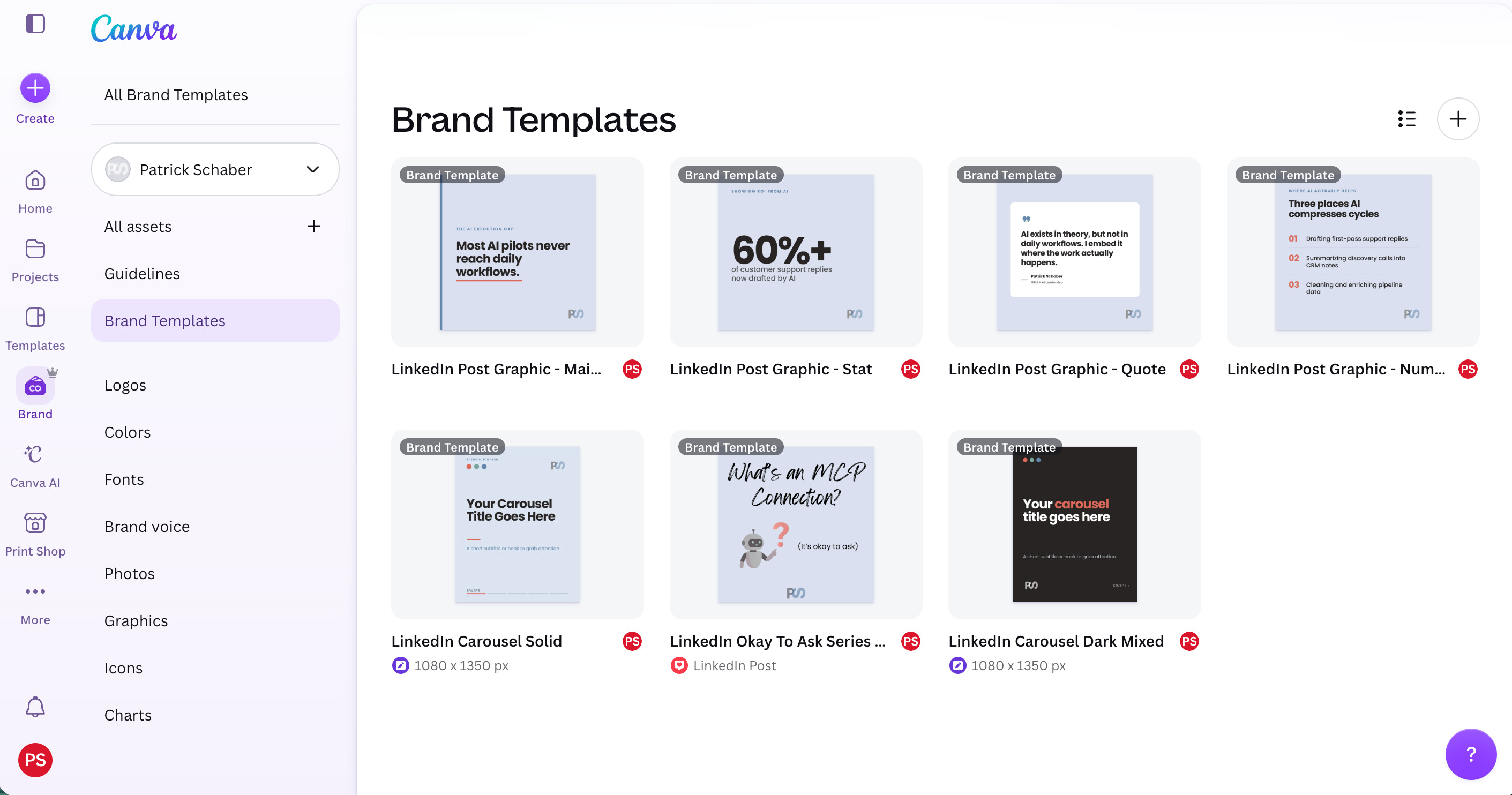
In order for Claude to be able to use Canva effectively, you’ll want to set up brand templates. To be able to have brand templates and everything else related to your brand design in Canva, you’ll need a paid account. This is a no-brainer spend in my opinion.
After making a couple small tweaks to each image sent over from Claude Design, I save each image as a brand template.
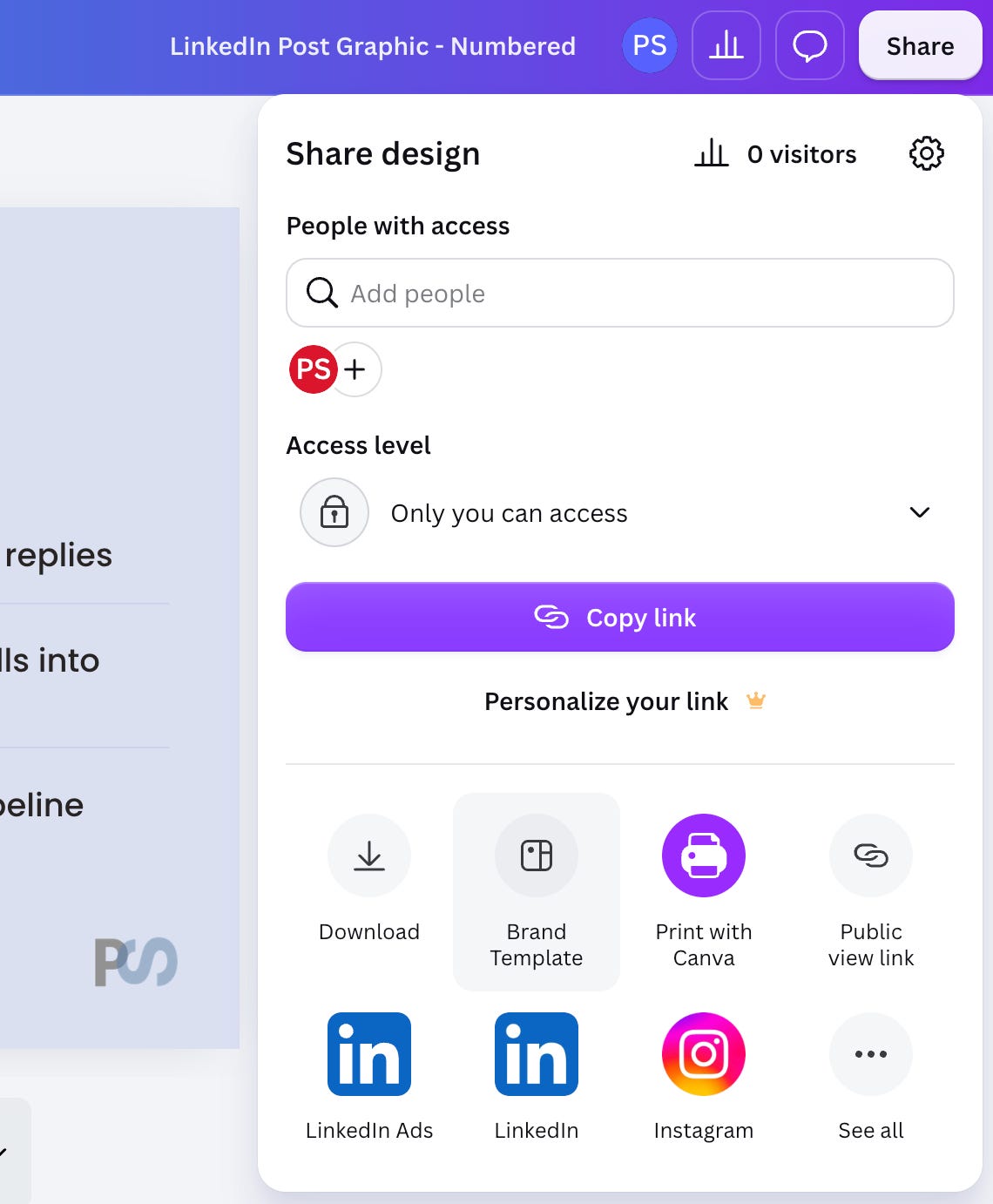
When I’m all done, you’ll see I have LinkedIn post image templates for single images and LinkedIn carousel post images.
Give Claude Context and Instructions
A key part of this whole workflow is, of course, my PatOS, which is my Claude operating system. Claude already has all the information it needs to know what my point of view will be and what to recommend from a LinkedIn post and graphic.
Plus, it has a LinkedIn Post skill and LinkedIn Post Image skill that work together to complete the task
The skills will:
Research the topic and draft post variations with recommendations for hooks and angles (in my voice, style, and tone)
Find my brand template in Canva and make a copy for the post design
Will use main themes from the content to create the images
Rename the image in a format I’ve given it and then put that design in the right Canva folder to make finding it easier in the future
Create the Asana Task in the Content Calendar and place the drafts and a link to the design in the Description field of the Task
Schedule it for the day I tell it to.
Now, when I have an idea for a LinkedIn post, I just give it a prompt like the one below in Claude Cowork and it gets to work.
Once in Asana this will also now populate in my Claude Dashboard where I manage my daily work.
The whole idea here is to remove things from my workflow that either I’m not great at or I don’t want to be spending the time on right now. In my opinion, this is one of the main functions of AI right now in business workflows.
I’m spending more time on evaluating what types of content my ideal customer profile would like to read and what additional types of content I can provide that give value to my readers.

AI Tech I’m Currently Using
I get quite a few questions on Substack, LinkedIn, and through my website on what AI tools I use for what use cases. I’ll try to share a few in each newsletter so it will give you some ideas of tools you can try for specific purposes. Here are a few for this week:
Everyday LLM - ChatGPT and Claude: I cover a lot of this above so won’t dive in too far here.
Call and Meeting Transcriptions - Granola: I like Granola for a couple of reasons. It takes the transcription and rolls it up into very good notes and action items but doesn’t need to be added to a meeting as an attendee. Also, it syncs great with my Hubspot CRM which makes it very easy to send notes to the contact record.
Presentations / Branded Documents - Gamma.app: I use this 3-4 times a week for anything I do with client presentations or professional document creation. I cover why I’m a heavy Gamma user in this post:

Video Recording / Editing - Descript: I’m trying to work in time to my weekly routine for video creation. I feel it’s important to give people a more personal connection. Descript is a huge timesaver. Imagine being able to erase or add text from a script and have it be reflected in the actual video in seconds. Unbelievable.
Sales Prospecting - Apollo.io and Clay: I don’t do a ton of outbound prospecting for my business but I’ve been using the free versions of Apollo.io and Clay to find companies that I could get to know through LinkedIn that may be interested in my services. I’m only touching on a sliver of the capabilities of these tools.
I like the fact how you schedule all of the articles and posts in the calendar. It's a neat way for your chief-of-staff to nudge you the right priorities!
"Suggested hooks and angles based on my ICP and Point-of-View" ➡️ I'd love to learn more about that... I'm starting my solopreneurial journey and I've exhausted all of my warm leads and need to come up with strategy for converting "cold" leads!
BTW I really like the name PatOS